← Back to board
Set up "Hey Siri, sort it"
On Android? Use the Android voice setup.
About 3 minutes on your iPhone. When you're done, anything you say after "Hey Siri, sort it" lands in your Inbox column.
1
Start a new shortcut
- Open the Shortcuts app and tap + in the top corner.
- Tap the name at the top and call it Sort it. That's what you'll say to Siri.
- Prefer different words? Name it anything, like To-do or Family list, and say that instead. Skip names Siri already uses for Apple's apps, such as Reminder, Note or Add to list.
- Want a shortcut just for one person? Make a copy, name it something like Emma's chores, and in step 3 set the text value to Emma, a space, then Dictated Text. Everything said to it lands under Emma.
- Already have a shortcut called Kinboard or Sortpen? Open it, tap its name at the top, and rename it Sort it. Nothing else needs to change.
2
Add "Dictate Text"
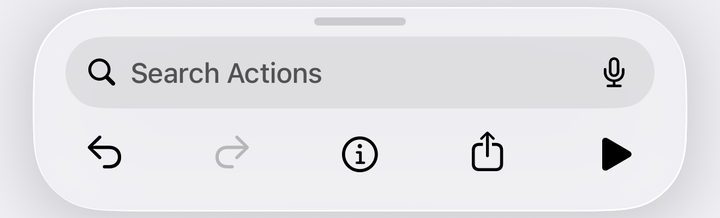
- Tap Search Actions at the bottom, type Dictate Text, and tap it.
- Set Stop Listening to After Pause.
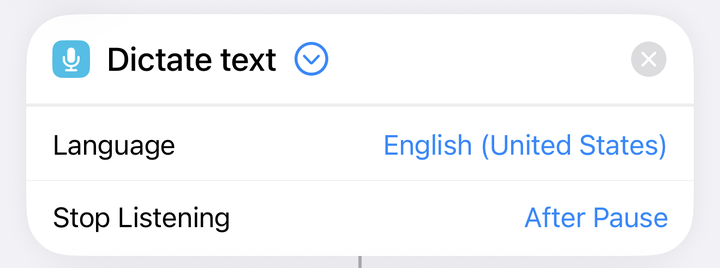
3
Add "Get Contents of URL"
- Search Actions for Get Contents of URL and tap it.
- Tap the blue URL bubble, clear it, and paste:
- Tap the ⌄ arrow to show more options. Set Method to POST.
- Under Headers, tap Add new header.
Key: type Authorization exactly (no space, no colon).
Text: paste your key line:Sign in, then come back here to copy your key line. You can also find it in the app under ⋯ → Siri. - Set Request Body to JSON. Tap Add new field → Text. Key: text. For the value, tap the box and pick Dictated Text from the bar above the keyboard.
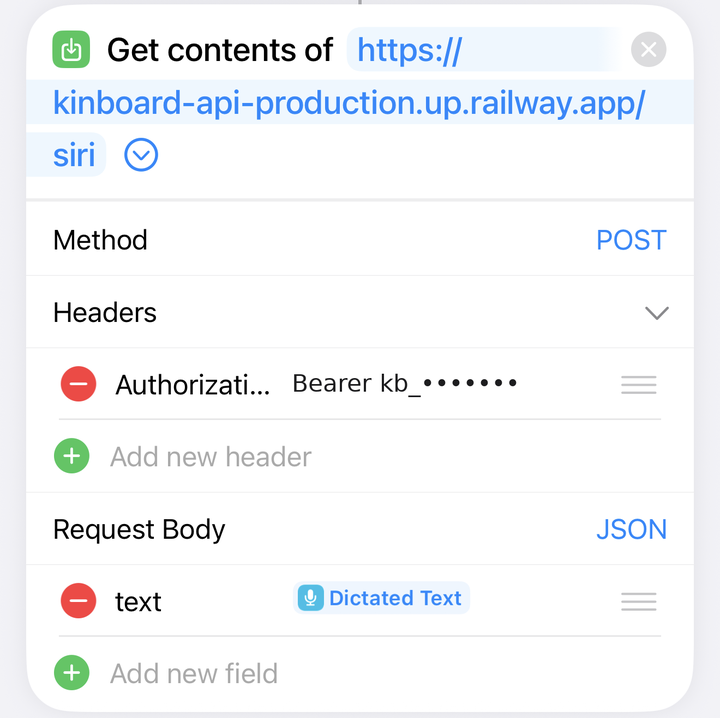
Check it matches the picture: one header only, and its left side reads Authorization.
4
Add "Speak Text"
- Tap Search Actions again, type Speak Text, and tap it. It goes below Get Contents of URL.
- It should read Speak Contents of URL. If not, tap the blank and pick Contents of URL.
5
Test it
- Tap ▶ at the bottom right and say: "Take out trash tomorrow at 7."
- You should hear: "Added Take out trash, tomorrow at 7:00 PM." It shows up in Inbox on your board.
- From now on, just say "Hey Siri, sort it," wait for the chime, and say the task.
If it doesn't work
- "The network connection was lost."
- Almost always the header. Delete it with the red ⊖, add a new one, type Authorization by hand, and paste the key line again.
- Siri says "That key is not valid."
- The key was copied partly or replaced. Copy the key line from this page again and paste it over the old one.
- Siri says "Please sign in."
- The header is missing. Re-add it as in step 3.
- Siri reads back something odd, or nothing.
- Check that the last action is Speak Text using Contents of URL.
Your key works like a password for Siri. Don't share it. If a phone is lost, replace the key in the app under ⋯ → Siri.